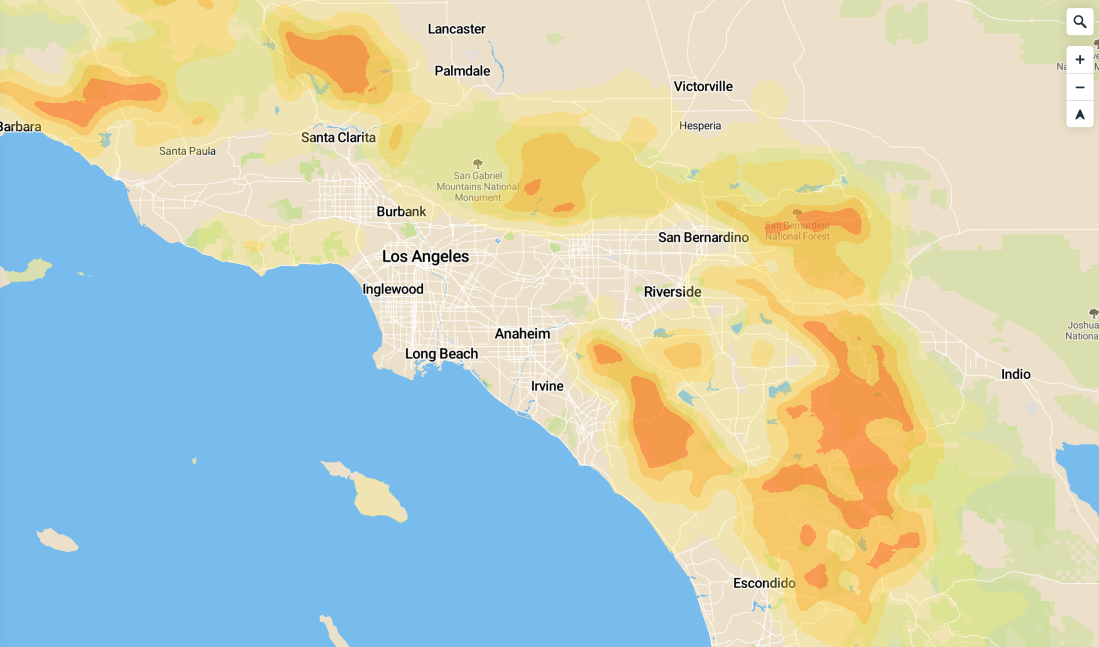
I thought was done learning new QGIS tools for a while. Turns out I needed to learn one more trick with QGIS — the Gaussian filter tool. The Gaussian filter is sparsely documented basically undocumented, so I figured I’d write up an post on how I used it to turn a raster image into vector layers of gradient bands.
Motivation: In my spare time I’m adding more layers to the site I’ve been building which maps out disaster risks. California was mostly on fire last year, so I figured wildfires were a pretty hot topic right now.
The most useful data-source I found for wildfire risk was this USDA-sourced raster data of overall 2018 wildfire risk, at a pretty fine gradient level. I pulled this into QGIS:
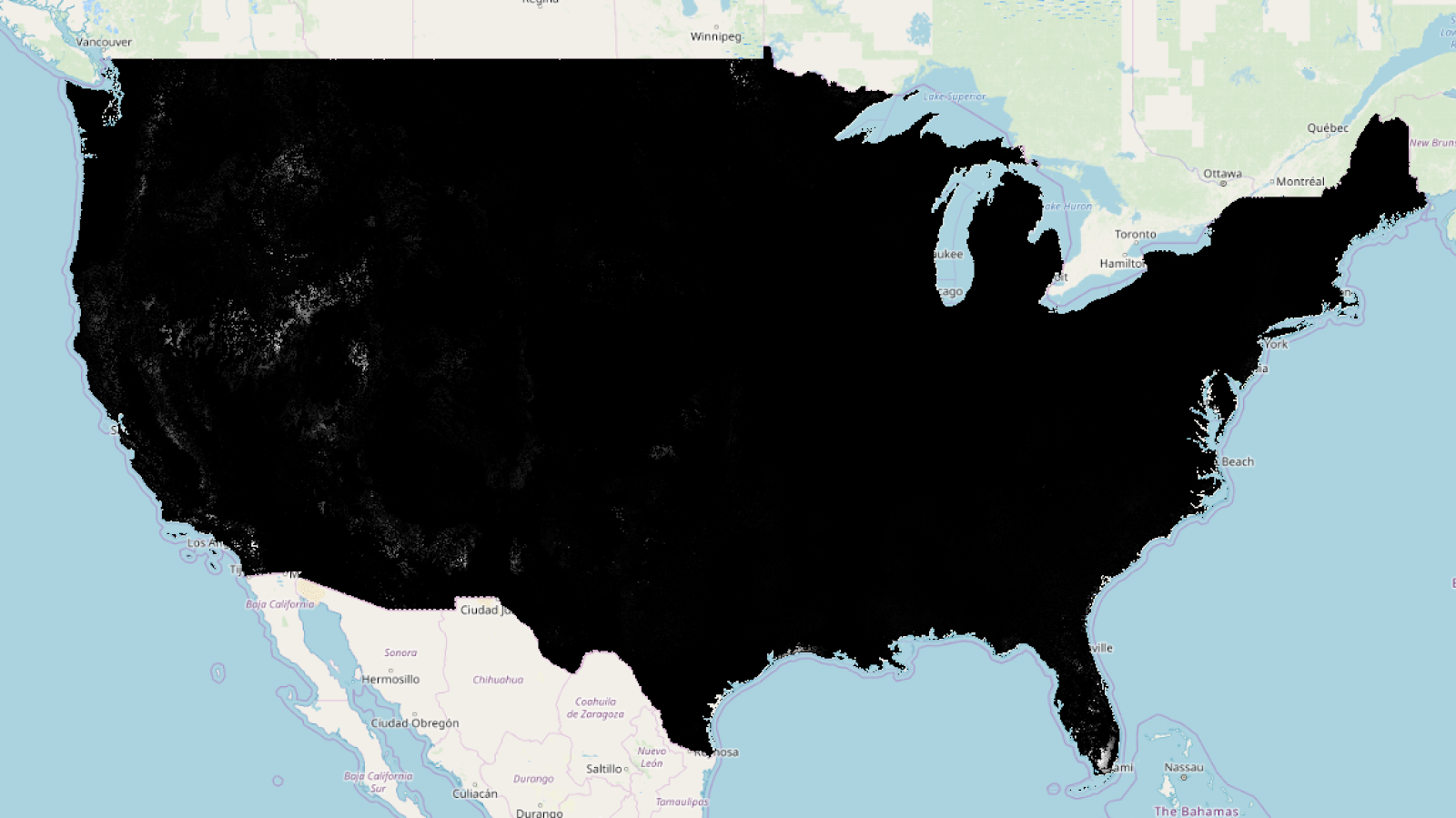
(I’m using the continuous WHP from the site I linked). Just to get a sense of what the data looked like, I did some basic styling to make near-0 values transparent, and map the rest of the values to a familiar color scheme:
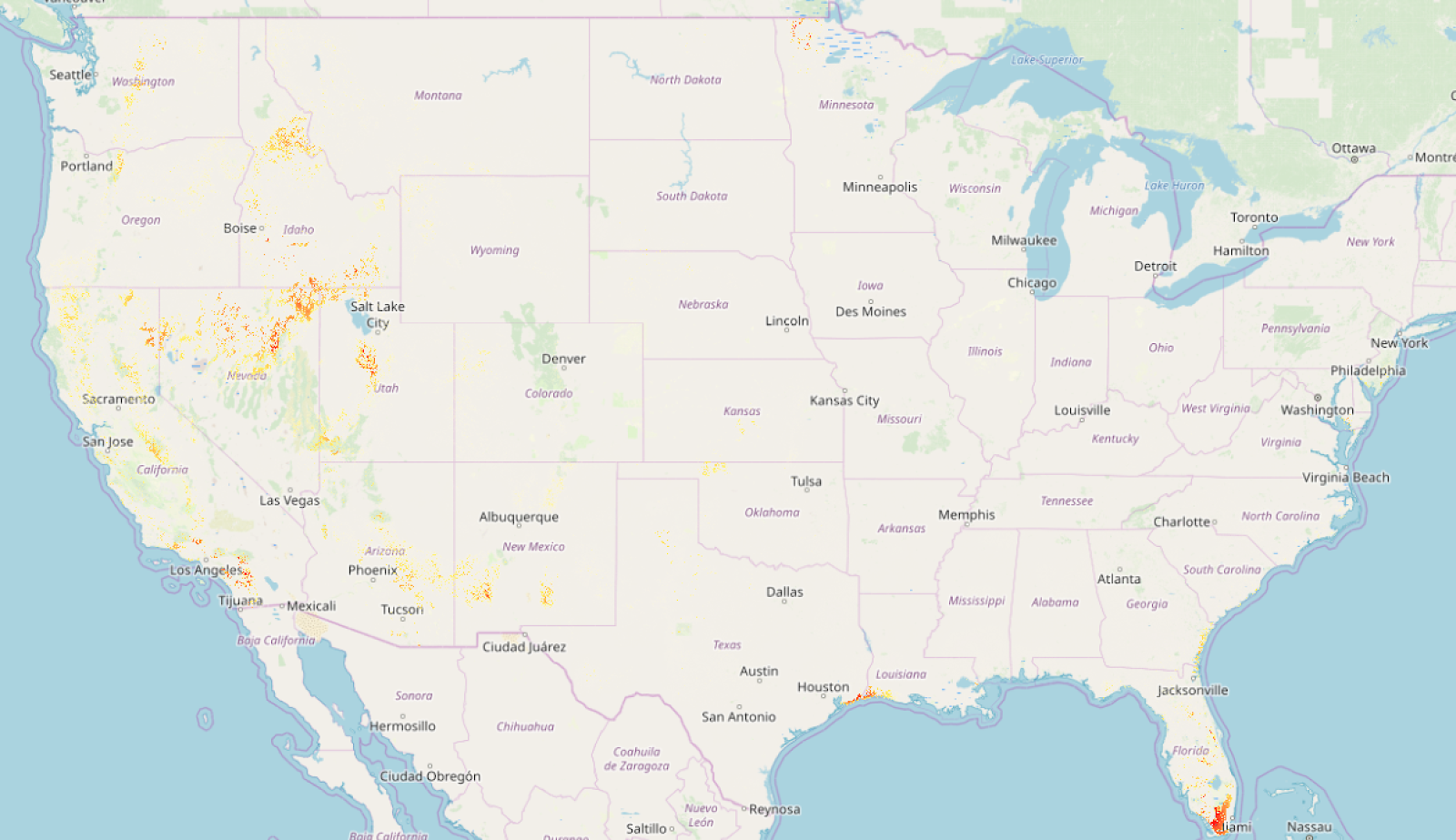
This actually looks pretty good as a high-level view, but the data is actually super grainy when you zoom in (which makes sense — the data was collected to show national maps):
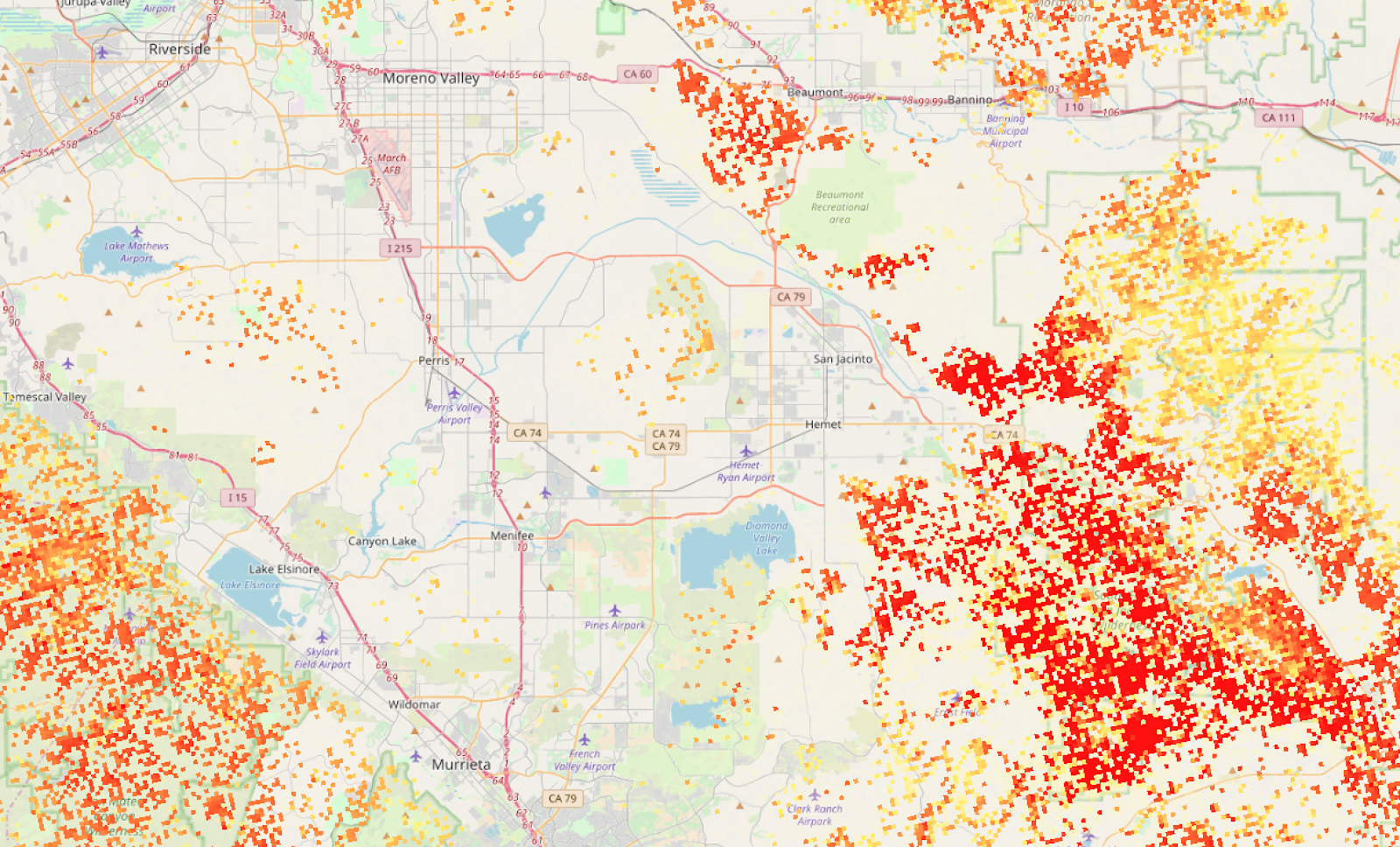
This is a bit grainy to display as-is at high zoom levels. Also, raster data, although very precise is (1) slow to load for large maps and (2) difficult to work with in the browser — in MapBox I’m not able to remap raster values or easily get the value at a point (eg, on mouse click). I wanted this data available as a vector layer, and I was willing to sacrifice a bit of granularity to get there.
The rest of this post will be me getting there. The basic steps will be:
- Filtering out low values from the source dataset
- Using a very slow, wide, Gaussian filter to “smooth” the input raster
- Using the raster calculator to extract discrete bands from the data
- Converting the raster to polygons (“polygonalize”)
- Putting it together and styling it
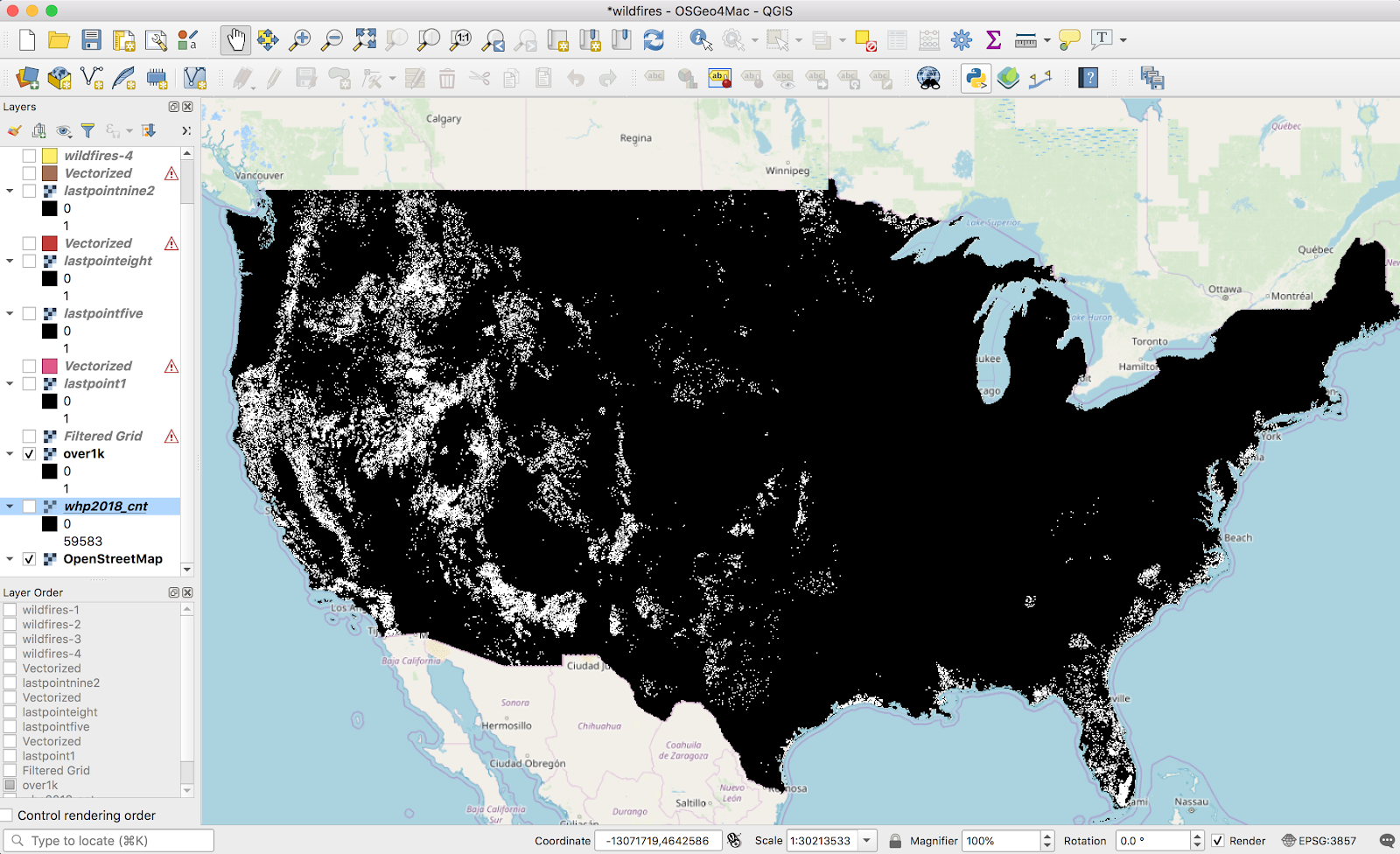
The first thing I did was filter values out of the original raster image below a certain threshold using the raster calculator. The only justification I have for this is “the polygonalization never finished if I didn’t”. Presumably this calculation is only feasible for reasonably-sized raster maps:
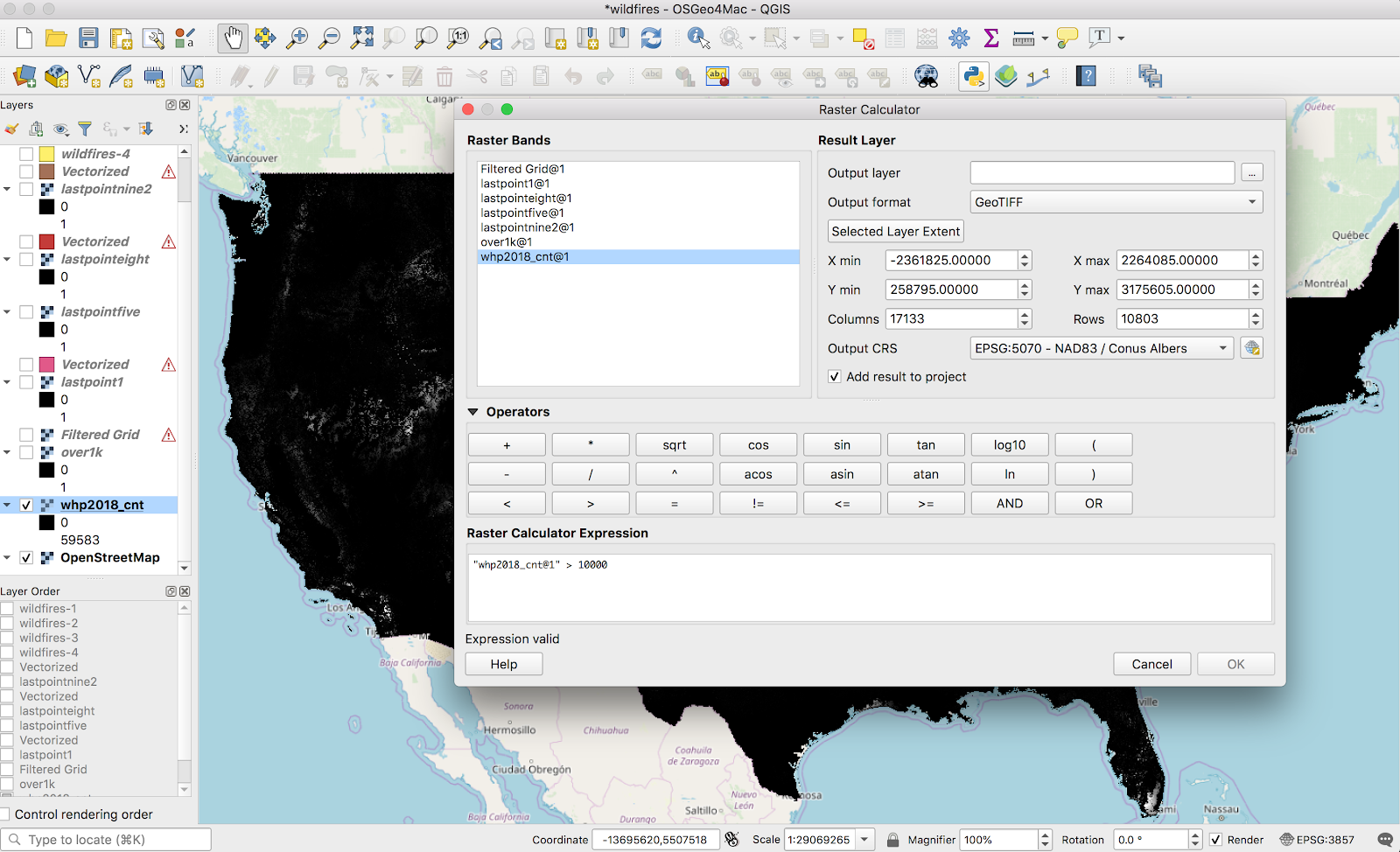
(I iterated on this, so the screenshot is wrong: I used a threshold of 1,000 in the final version). The result looks like this:
Next step is the fancy new tool — the Gaussian filter. A Gaussian filter, or blur, as I’ve seen elsewhere, is kind of a fancy “smudge” tool. It’s available via Processing → Toolbox → SAGA → Raster filter.
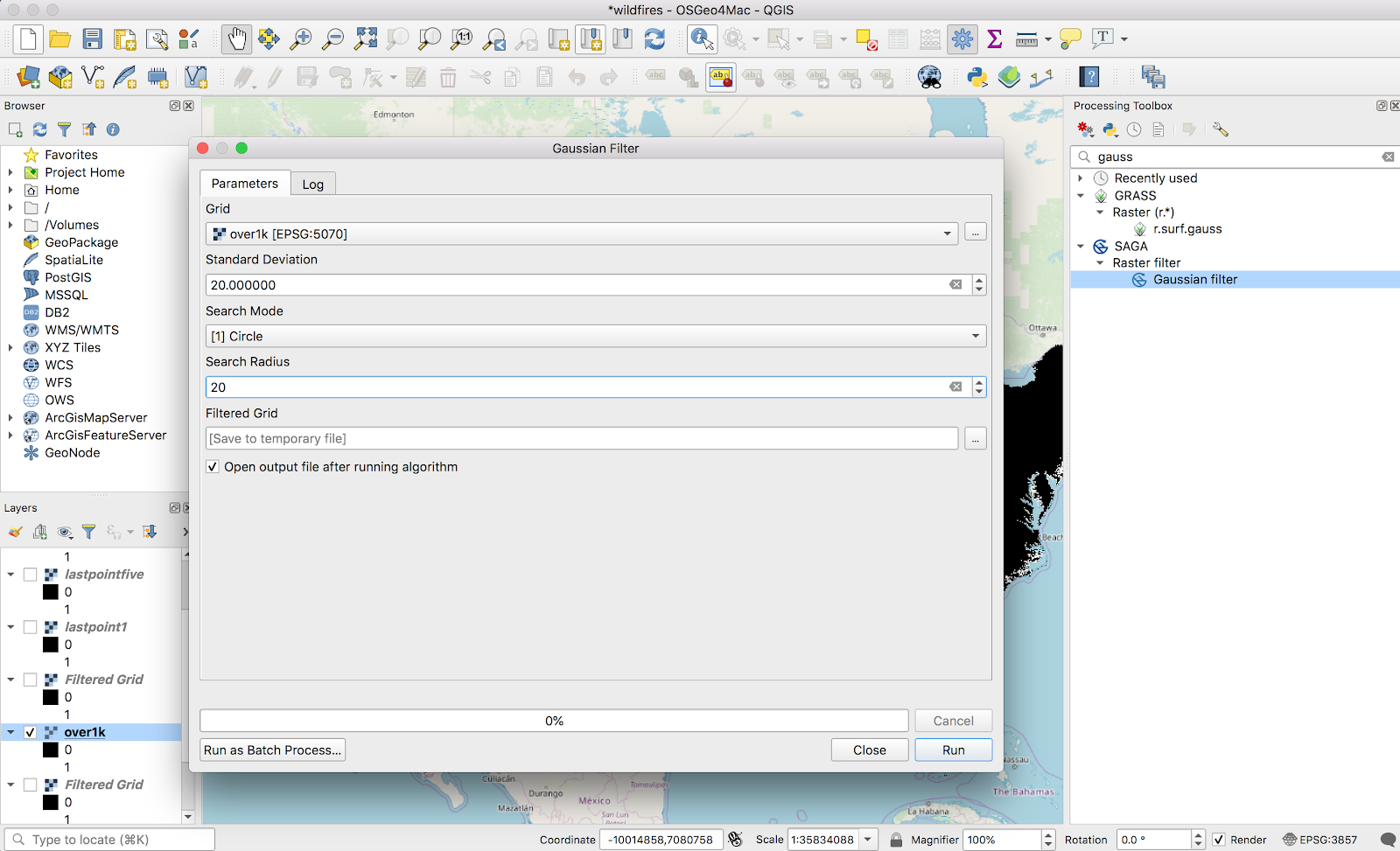
This took forever to run. Naturally, the larger values I used for the radius, the longer it took. Iterated on the numbers here for quite a while, with no real scientific basis; I settled on 20 Standard Deviation and 20 search radius (pixels), because it worked. There is no numerical justification for those numbers. The result looks like this:
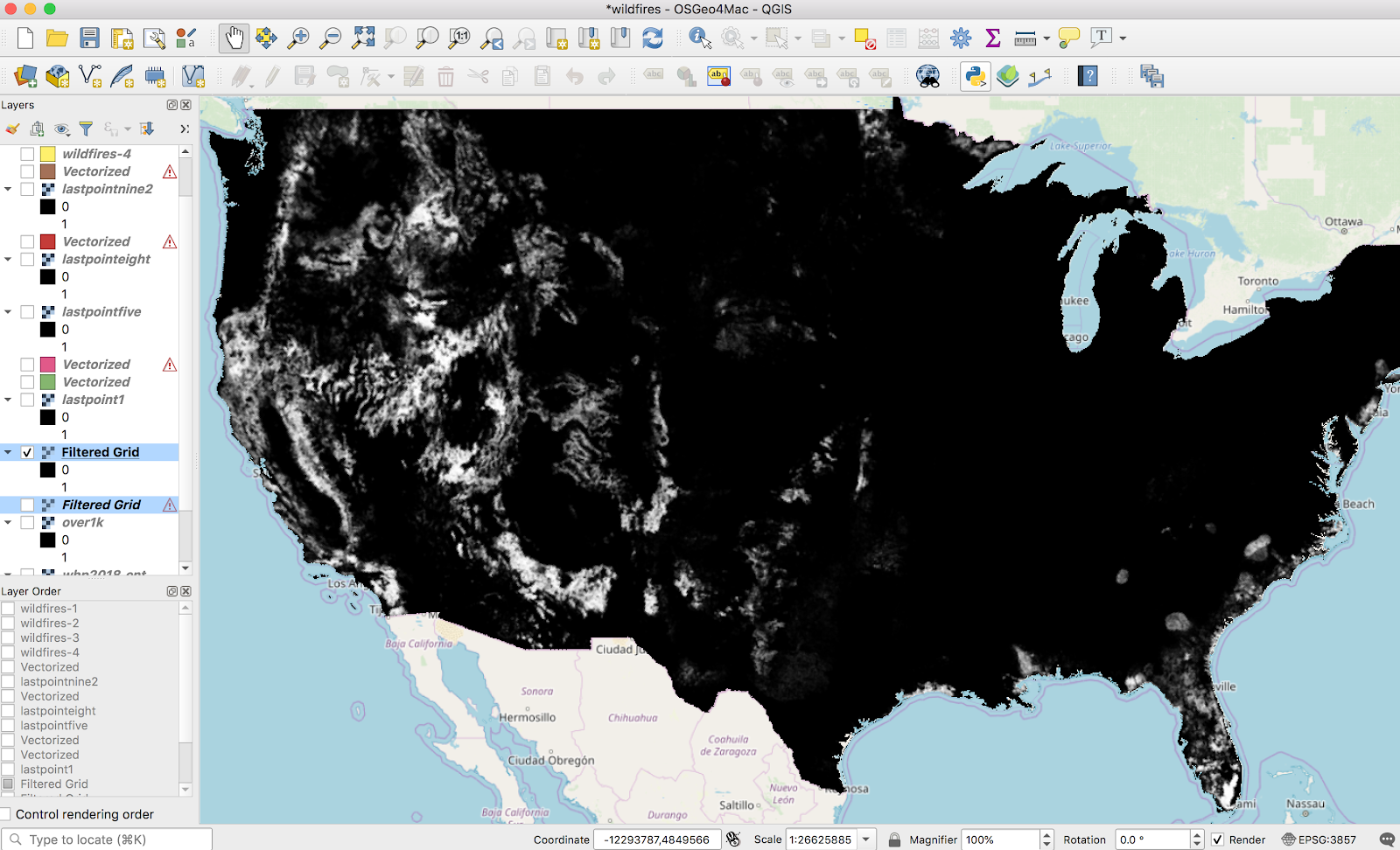
Now, we can go back to what I did a few weeks ago — turning a raster into vectors with the raster calculator and polygonalization. I did a raster calculator on this layer (a threshold of .1 here, not shown):
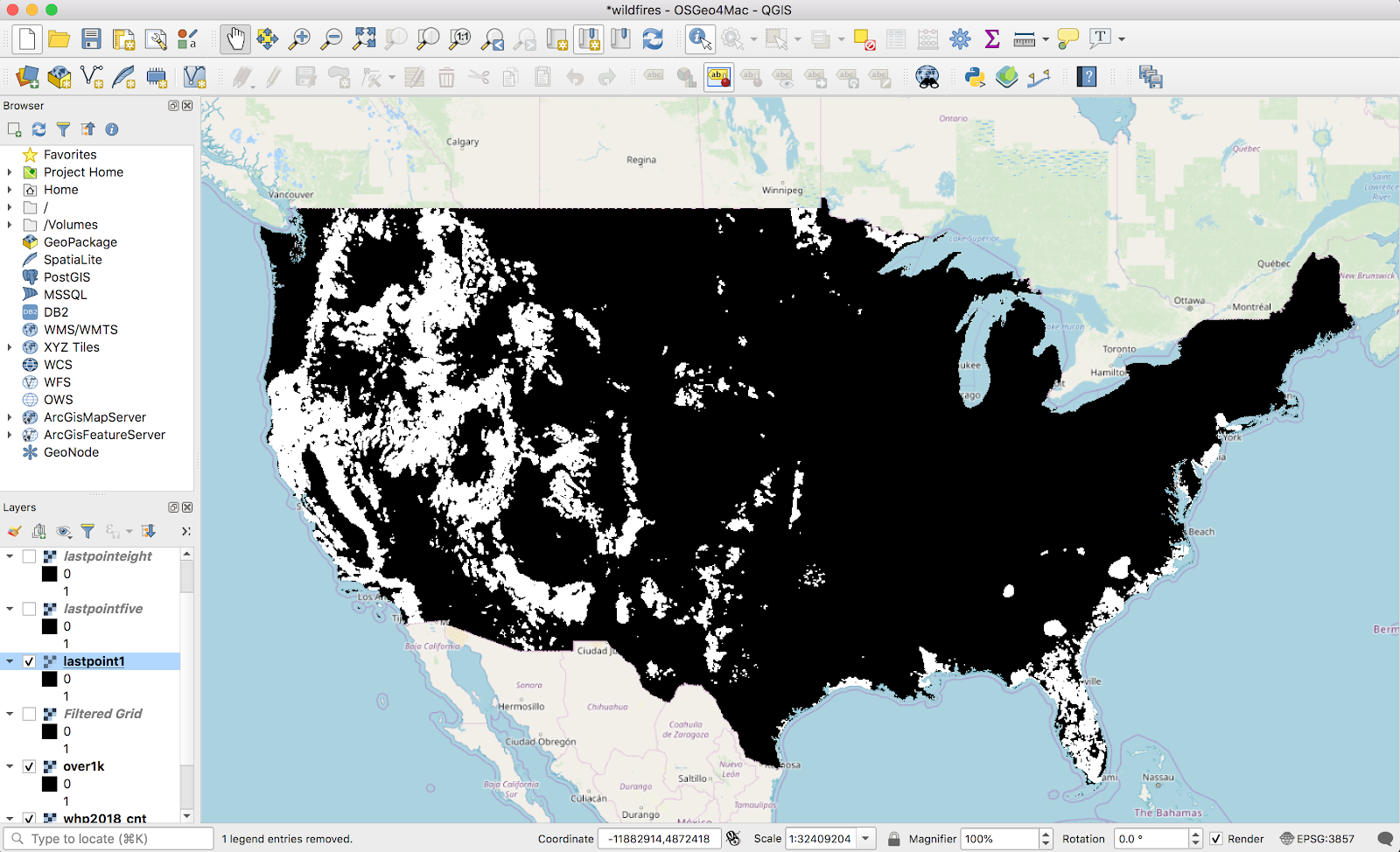
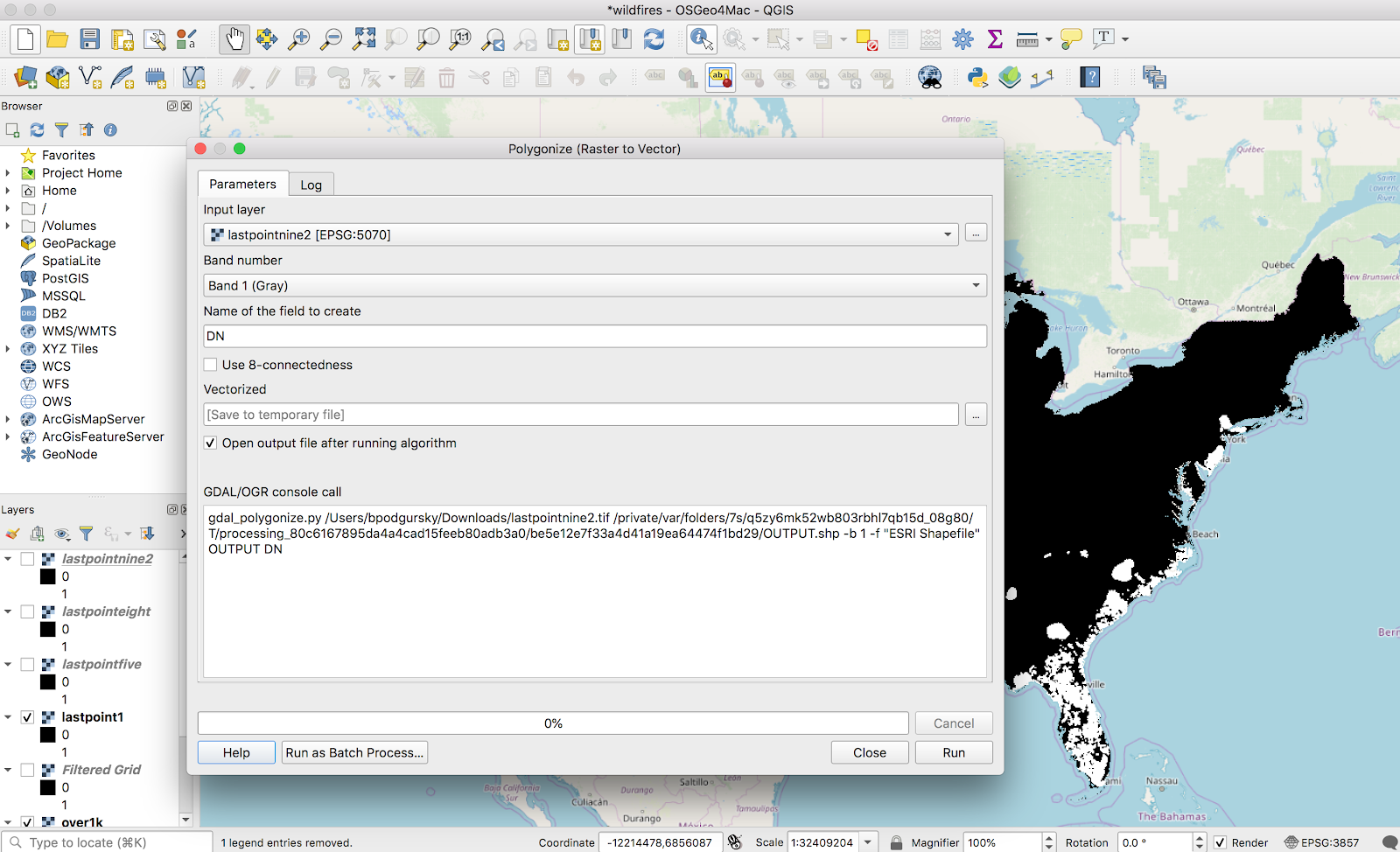
These bands are actually continuous enough that we can vectorize it without my laptop setting any polar bears on fire. I ran through the normal Raster → Conversion → Polygonalize tool to create a new vector layer:
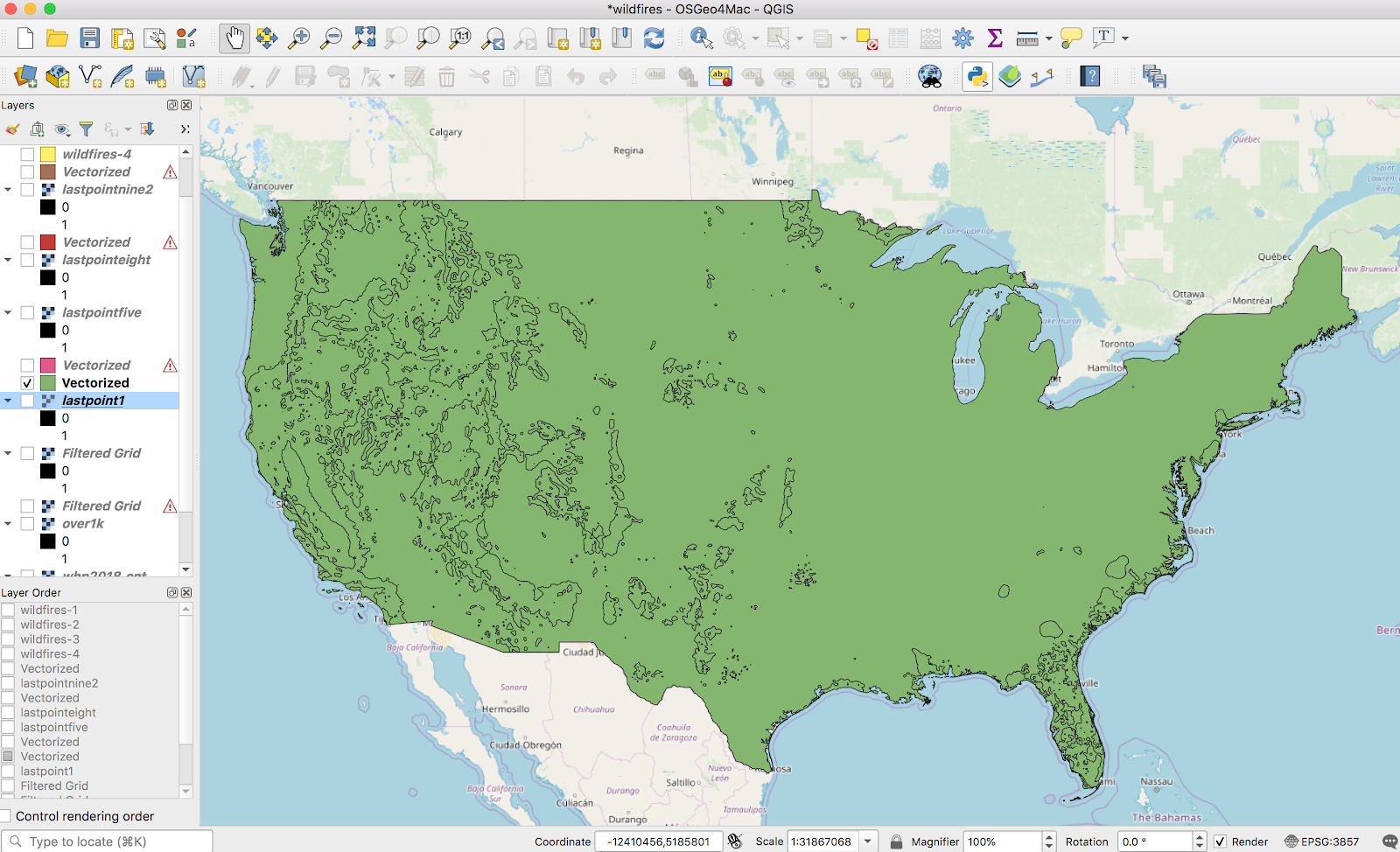
This looks like what we’d expect:
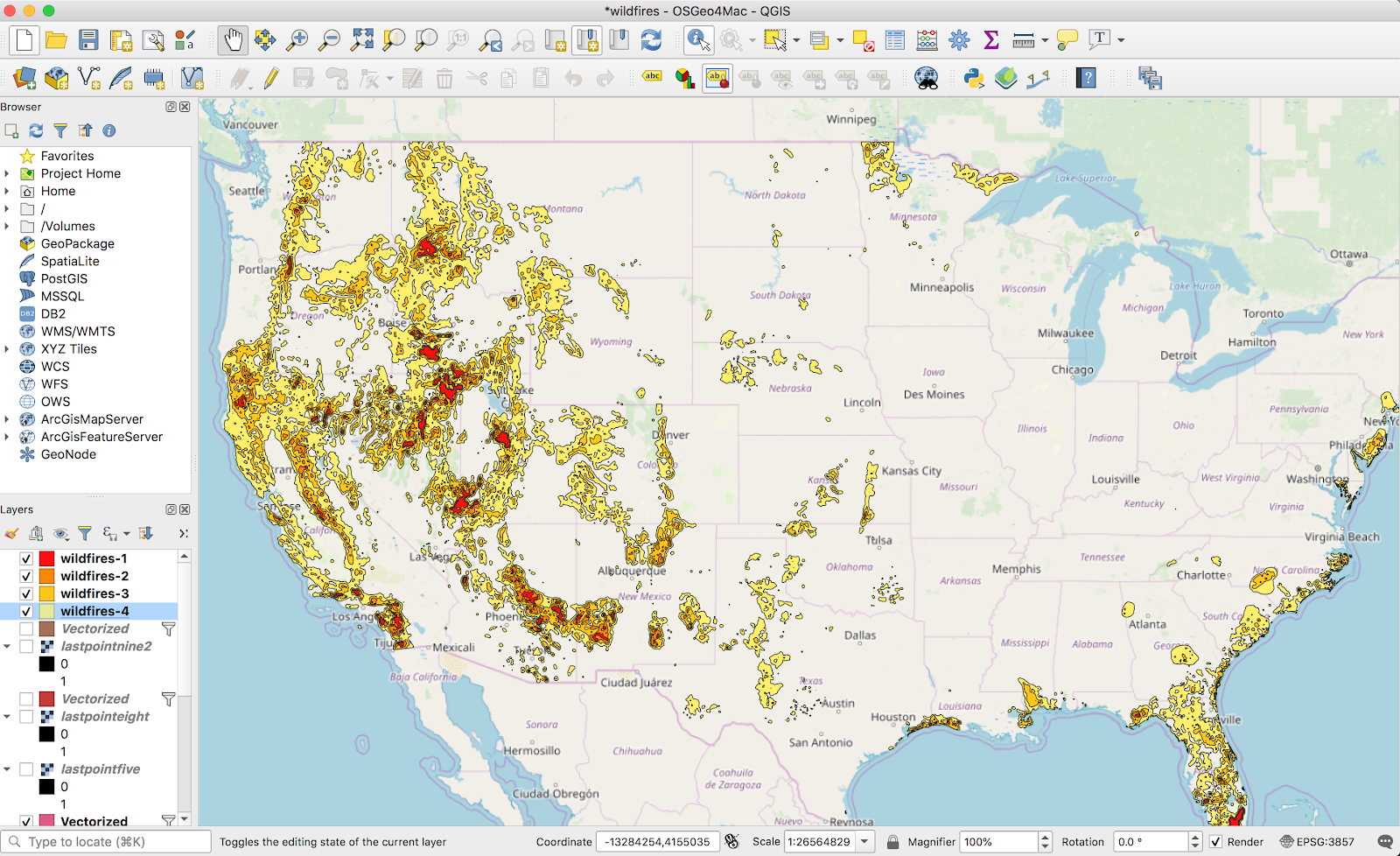
Fast forward a bit, filtering out the 0-value shape from the vector layer, rinse-and-repeating with 3 more thresholds, and adding some colors, it looks pretty good:
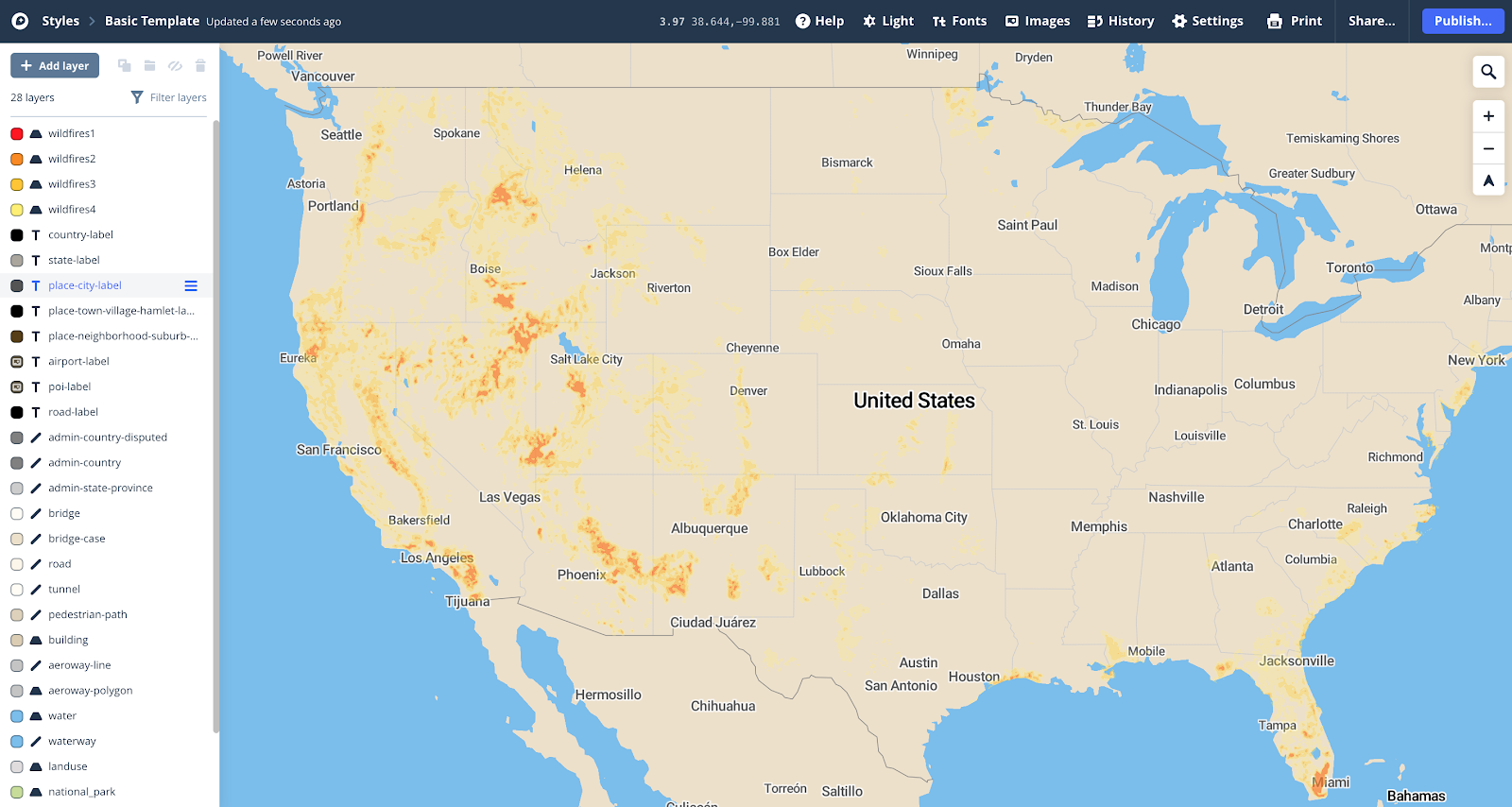
I want this on Mapbox, so I uploaded it there (again, see my older post for how I uploaded this data as an mbtiles file). Applied the same color scheme in a Style there, and it looks nice:
Just as a summary of the before and after, here is Los Angeles with my best attempt at styling the raw raster data:
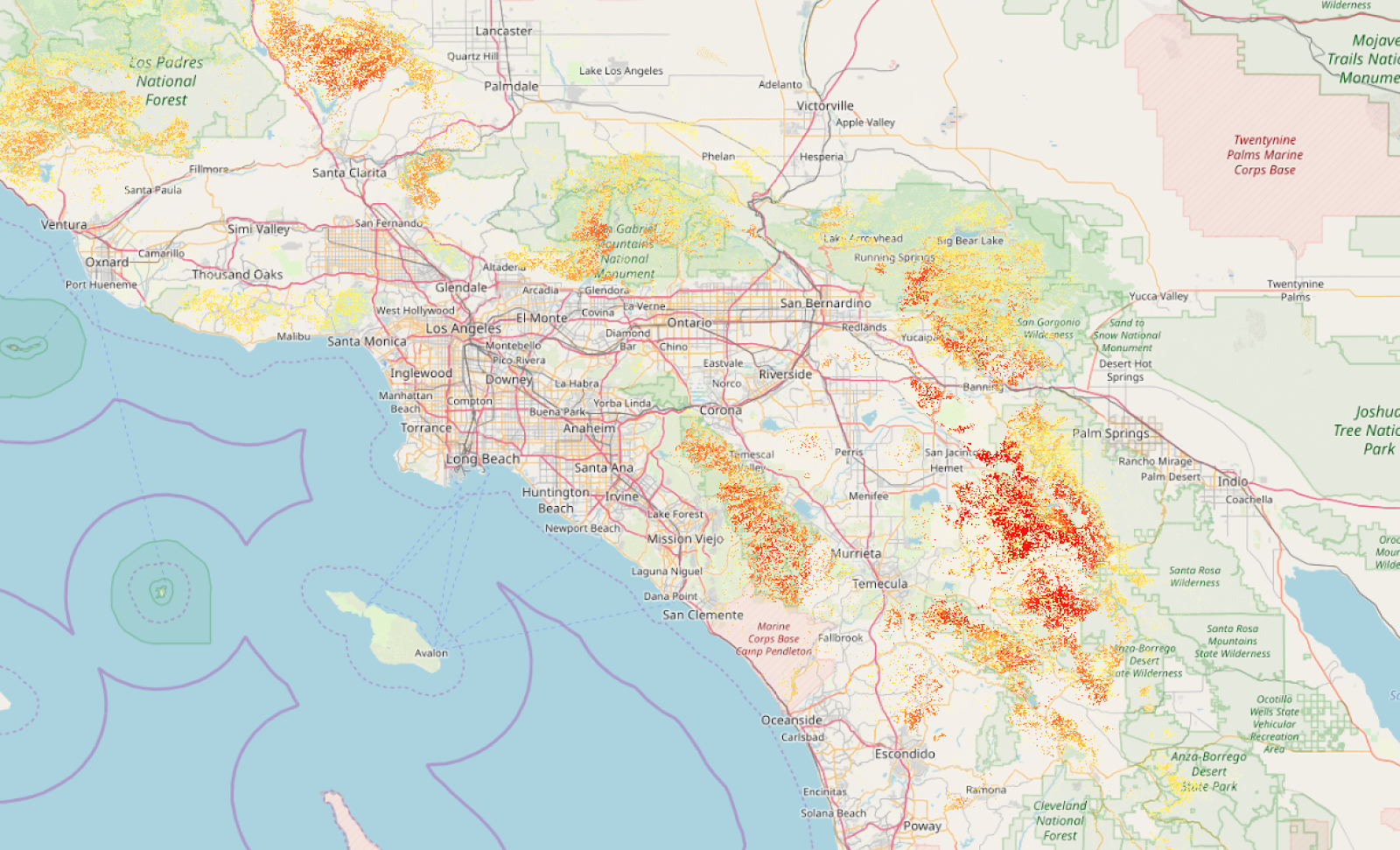
You get the general idea, but it’s not really fun when you zoom in. Here’s it is after the Gaussian filter and banding:
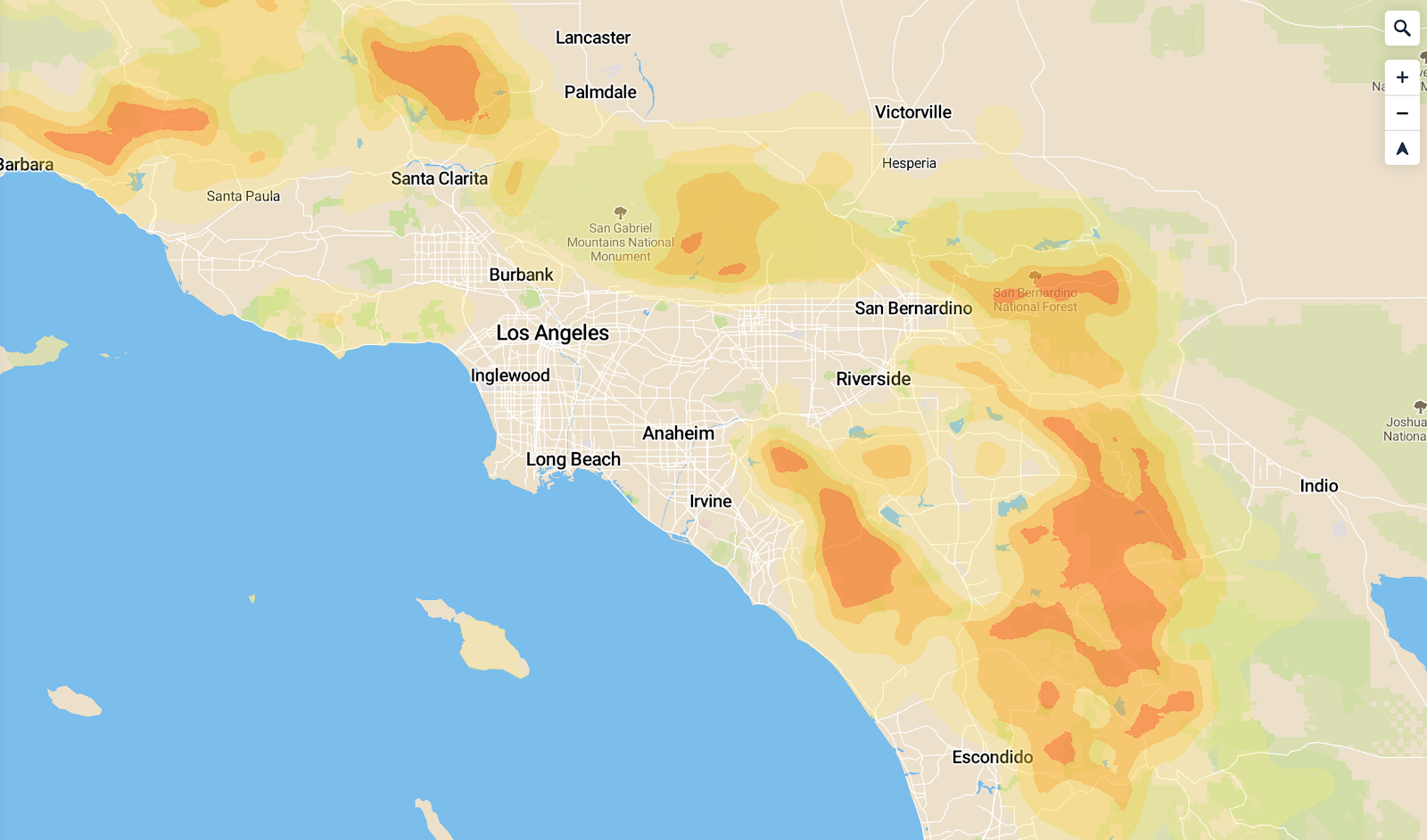
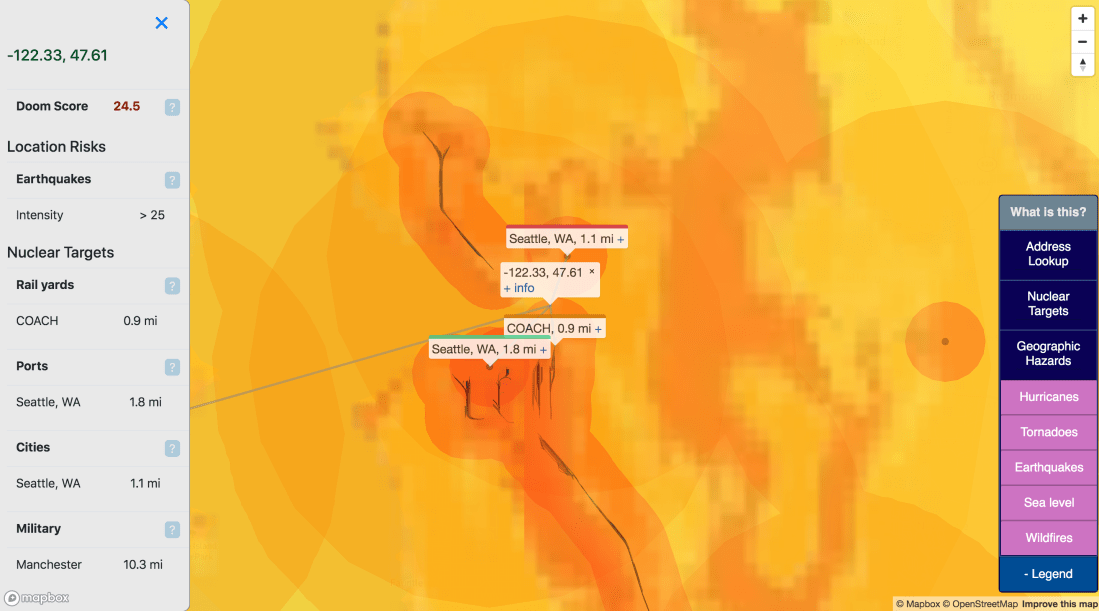
I found these layers a lot easier to work with, and a lot more informative to the end user. It’s now visible as a layer on bunker.land.
I thought this tool was nifty, so hopefully this helps someone else who needs to smooth out some input rasters.


 Ben Podgursky